
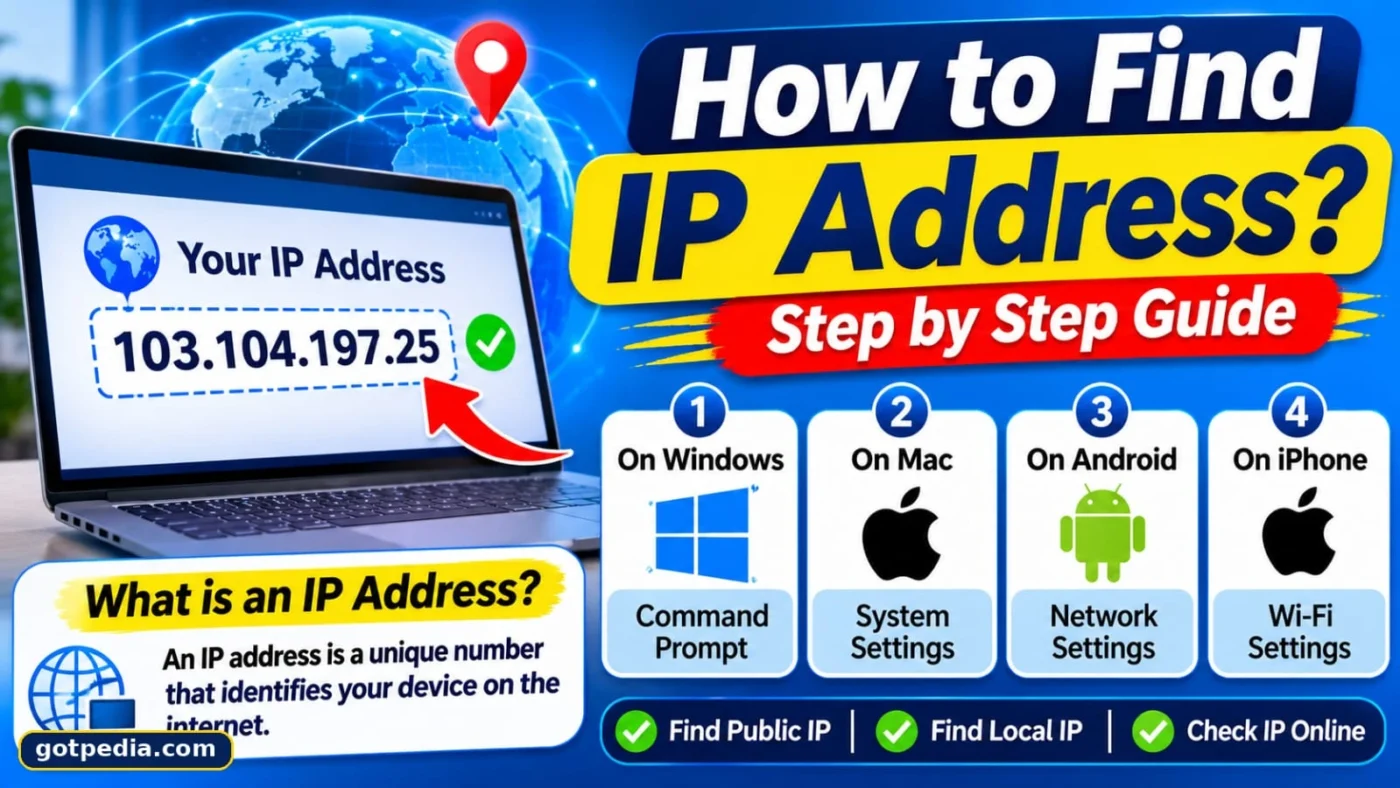
How to Find Your IP Address on Any Device
To find your IP address, search “what is my IP” for your public IP address, the one websites see, or run curl ifconfig.me in a terminal. For your private IP address, open your device’s network settings or run ipconfig on Windows, ipconfig getifaddr en0 on Mac, or ip a on Linux.
An IP address is a numeric label, such as 192.168.1.12, that identifies a device on a network so data knows where to go. Most homes use two kinds at once, and mixing them up is the main reason people get stuck. This guide covers both, device by device, with the exact menu path or command for each, plus what to do when the number on screen does not match what you expected.
Which IP address do you need?
You need the public address if a website, game server or support agent asks for it, and the private address if you are setting up a printer, a local server or port forwarding. Your router sits between the two and has an address of its own.
Table 1. Public, private and router IP addresses compared
| Type | Who assigns it | Who can see it | Typical example | Where to find it |
|---|---|---|---|---|
| Public IP | Your internet provider | Every website you visit | A number your provider owns | Search engine, IP checker, curl ifconfig.me |
| Private IP | Your router (DHCP) | Only devices on your network | 192.168.1.23 | Device network settings, ipconfig, ip a |
| Router (gateway) IP | You or the manufacturer | Only devices on your network | 192.168.1.1 | “Default Gateway” or “Router” field |
Private addresses come from ranges reserved for local networks in RFC 1918: 10.0.0.0/8, 172.16.0.0/12 and 192.168.0.0/16. Your router translates between them and the single public address your provider gives your home, which is why a phone, a laptop and a TV can all appear online as one address.
How to find your public IP address
Your public IP address is the one the internet sees, so the quickest way to read it is to ask a service outside your network. Every method below returns the same number unless a VPN or proxy is active.
Use a search engine
Open any browser, type “what is my IP address” and read the result at the top of the page. This works on every device, including phones and tablets. If a VPN is running, the result shows the VPN server’s address instead of your own.
Use a live IP checker
Your public IP address right now
Checking…
Looked up in your browser through the ipify API. If a VPN is on, you will see the VPN server’s address.
Dedicated checkers also show your approximate city and provider. Services such as the ipify API return your public address as plain text, which is handy for scripts and quick checks. Treat the location as a rough guess; it is often the provider’s regional hub, not your street.
Use the command line
Open Command Prompt on Windows or Terminal on Mac and Linux, then run:
- Type
curl ifconfig.meand press Enter. - Read the single line it prints. That is your public IP address.
If curl is unavailable, nslookup myip.opendns.com resolver1.opendns.com works on Windows; the address appears under the second “Address” line.
Read it from your router
Log in to your router’s admin page, using the address from the router section below. Look under a page named Status, Internet or WAN for a field called WAN IP or Internet IP. If that number differs from what a checker shows, see the section on unexpected addresses.
How to find your IP address on Windows
On Windows, your private address lives in Settings or in one Command Prompt command. The Settings route is easier to read; the command is faster once you know it.
Windows 11 and 10 Settings
- Open Settings and select Network & internet.
- Choose Wi-Fi or Ethernet, whichever is connected.
- On Windows 11, click the connected network’s properties. On Windows 10, you may need to click Hardware properties first.
- Scroll to IPv4 address. The four numbers separated by dots are your private IP address.
Command Prompt
- Press the Windows key + R, type
cmdand press Enter. - Type
ipconfigand press Enter. - Under your active adapter, read IPv4 Address. The Default Gateway line directly below is your router. The ipconfig reference on Microsoft Learn lists every switch.
PowerShell
Run Get-NetIPAddress -AddressFamily IPv4 for a table of every IPv4 address on the PC, including virtual adapters from VPNs and virtual machines. Use ipconfig /all instead if you also need the MAC address and DHCP lease details.
How to find your IP address on a Mac
On a Mac, the fastest route is a keyboard modifier, and the most complete is Terminal. All three methods show the same private address.
Option-click the Wi-Fi icon
Hold Option and click the Wi-Fi icon in the menu bar. The menu lists your IP address and your router’s address without opening any window.
System Settings
- Open the Apple menu, then System Settings, then Network.
- Select your connected Wi-Fi or Ethernet service and click Details.
- Open the TCP/IP tab to read the IP address and router.
Terminal
Run ipconfig getifaddr en0. On many Macs en0 is Wi-Fi, but if nothing prints, run networksetup -listallhardwareports to find the right device name and try again.
How to find your IP address on iPhone and iPad
On iPhone and iPad, the address sits inside the details of your Wi-Fi network. The steps are the same across recent iOS and iPadOS versions.
- Open Settings and tap Wi-Fi.
- Tap the i icon next to the connected network.
- Scroll to IP Address for the private address, and read Router just below it.
The Private Wi-Fi Address switch on that screen changes the hardware (MAC) address your device presents, not its IP address, so turning it on or off will not alter what you see here. Mobile data has no equivalent screen, so use a search engine or checker to see the public address your carrier assigns.
How to find your IP address on Android
Android labels vary by manufacturer, but the route is always: Wi-Fi settings, then the connected network’s details. If you cannot find it, type “IP address” into the Settings search bar.
Table 2. Where to look on common Android phones
| Phone | Path | What to read |
|---|---|---|
| Samsung Galaxy | Settings > Connections > Wi-Fi > gear icon > View more | IP address |
| Google Pixel | Settings > Network & internet > Internet > gear icon > Network details | IP address |
| Other brands | Settings > Wi-Fi > tap the connected network (try Advanced) | IP address or IPv4 |
Screens move between Android versions, so treat these as starting points rather than fixed paths.
How to find your IP address on Linux, ChromeOS, consoles and TVs
Devices without a familiar desktop still keep their address in a network or connection screen. Linux is the exception: it is almost always a command.
Linux
Run ip a and look for an inet line under your active interface (often wlan0, wlp or eth0). For a short answer, hostname -I prints every address the machine holds, separated by spaces.
ChromeOS
Open Settings, select Network, and click your connected network. The Network tab shows the IP address.
Game consoles and smart TVs
Consoles and streaming boxes keep the address in their network status pages, and smart TVs usually hide it under an “About” or “Network status” menu.
Table 3. Device-to-path lookup
| Device | Where the private IP appears |
|---|---|
| Linux | ip a or hostname -I in a terminal |
| ChromeOS | Settings > Network > connected network |
| PlayStation | Settings > Network > View Connection Status |
| Xbox | Settings > General > Network settings > Advanced settings |
| Roku | Settings > Network > About |
| Apple TV | Settings > Network > your connection |
| Smart TV | Network or About menu (names differ by brand) |
How to find your router’s IP address
Your router’s address is called the default gateway, and you type it into a browser to reach the router’s settings. Common values are 192.168.1.1, 192.168.0.1 and 10.0.0.1, but do not assume; read it from your device.
- Windows: run
ipconfigand read Default Gateway. - Mac: open System Settings > Network > Details > TCP/IP, or run
route -n get defaultand read the gateway line. - Linux: run
ip routeand read the address after “default via”. - iPhone: Settings > Wi-Fi > i icon > Router.
- Android: the Gateway field in the network details screen.
Why your IP address looks different than expected
Two honest-looking numbers can disagree, and the cause is usually the network, not your device. Table 4 maps the common symptoms.
Table 4. Symptoms, causes and fixes
| What you see | Likely cause | What to do |
|---|---|---|
| Router WAN address differs from the public IP a checker shows | Carrier-grade NAT at your provider | Ask the provider about a public IPv4 address, or use IPv6 |
| Checker shows a distant country or a hosting company | VPN or proxy is active | Disconnect it and check again |
| Address starts with 169.254 | The device did not get an address from the router | Restart the router, reconnect, check the cable |
| Phone shows a different public IP on mobile data than on Wi-Fi | Two separate networks | Normal; each network has its own address |
| Checker shows a long address with colons | Your connection uses IPv6 | Normal; many networks run IPv4 and IPv6 together |
Carrier-grade NAT
Some providers share one public IPv4 address among many customers. In that case your router’s WAN address may fall in the shared address space reserved for carrier-grade NAT, 100.64.0.0/10, and inbound connections such as port forwarding will not work.
VPNs and proxies
A VPN replaces your visible public address with the VPN server’s. Your private address does not change, so everything in the Windows, Mac and phone sections still applies.
Self-assigned 169.254 addresses
When a device cannot reach a DHCP server, it assigns itself an address from the 169.254.0.0/16 block defined in the link-local addressing standard. It lets nearby devices talk but gives no internet access.
Is it safe to share your IP address?
Sharing your public IP address with a website or support agent is normally low risk, because it points to your network and approximate area, not to your name or street. Websites you visit already see it.
Your private address is not visible outside your network and is not sensitive in the same way. What deserves care is the router: leave its admin page unexposed to the internet and keep its login changed from the default. IPv6 adoption keeps growing, and Google’s IPv6 statistics page tracks it if you want the current picture. For more plain-English explainers, browse Gotpedia on your next setup project.
FAQ
What is my IP address?
Your IP address is the number that identifies your connection or device on a network. The public one is shown by searching “what is my IP” or running curl ifconfig.me. The private one is in your device’s network settings or from ipconfig, ipconfig getifaddr en0 or ip a, depending on the system.
How do I find my IP address on my phone?
Open Settings, tap Wi-Fi, then tap the info icon or gear next to your connected network, and read the IP address field. On iPhone this is the i icon; on Android it may be under View more or Network details. For your public address, search “what is my IP” in a browser.
What is the difference between a public and a private IP address?
A public IP address is assigned by your internet provider and is visible to websites. A private IP address is assigned by your router and is visible only inside your network. Many devices share one public address, but each has its own private address, which is how a household stays connected with a single provider address.
How do I find my router’s IP address?
Your router’s IP address is your device’s default gateway. On Windows, run ipconfig and read Default Gateway; on Mac, open Network > Details > TCP/IP; on iPhone, read the Router field under Wi-Fi. Common values are 192.168.1.1, 192.168.0.1 and 10.0.0.1, but confirm on your own device.
Why is my IP different from my router’s WAN IP?
The usual cause is carrier-grade NAT, where your provider shares one public IPv4 address among many customers and gives your router an address from the 100.64.0.0/10 range. A VPN or proxy on the checking device can also cause a mismatch. Disconnect any VPN and compare again; if they still differ, ask your provider.
Does a VPN change my IP address?
A VPN changes your public IP address, not your private one. Websites see the VPN server’s address instead of the one your provider gave you. Your device still uses the same private address from your router, so network settings and ipconfig output stay unchanged while the VPN is connected.
How do I find my IP address without internet?
You can still find your private IP address, because it comes from your router or the device itself, not from the internet. Use network settings, ipconfig, ipconfig getifaddr en0 or ip a. Your public address cannot be read offline, since it requires reaching an outside service or your router’s WAN status page.
Can someone find me from my IP address?
Not precisely. An IP address usually reveals your provider and an approximate city or region, not your name or street address. Only your provider can link it to your account, and a single public address often covers a whole household or network. Using a VPN hides it from the sites you visit.
Sources and methodology
- RFC 1918, Address Allocation for Private Internets: https://www.rfc-editor.org/rfc/rfc1918
- RFC 6598, IANA-Reserved IPv4 Prefix for Shared Address Space: https://www.rfc-editor.org/rfc/rfc6598
- RFC 3927, Dynamic Configuration of IPv4 Link-Local Addresses: https://www.rfc-editor.org/rfc/rfc3927
- Microsoft Learn, ipconfig command reference: https://learn.microsoft.com/en-us/windows-server/administration/windows-commands/ipconfig
- Google IPv6 statistics: https://www.google.com/intl/en/ipv6/statistics.html
- ipify, a simple public IP address API: https://www.ipify.org/
This guide was written from the standard behavior of Windows, macOS, iOS, Android, Linux and ChromeOS network tools, checked against the primary documents above for address ranges and commands. Menu names change between versions and manufacturers, so the paths are described as starting points. No usage statistics are quoted, because figures change; linked sources are the place to read current numbers.

1 comment
Comments are closed for this article.